Working with Multiple Spaces
Room list
The room list shows you all the rooms you have access to: your own and the ones you've been invited to.
From here, you can enter the rooms using the "GO" button.
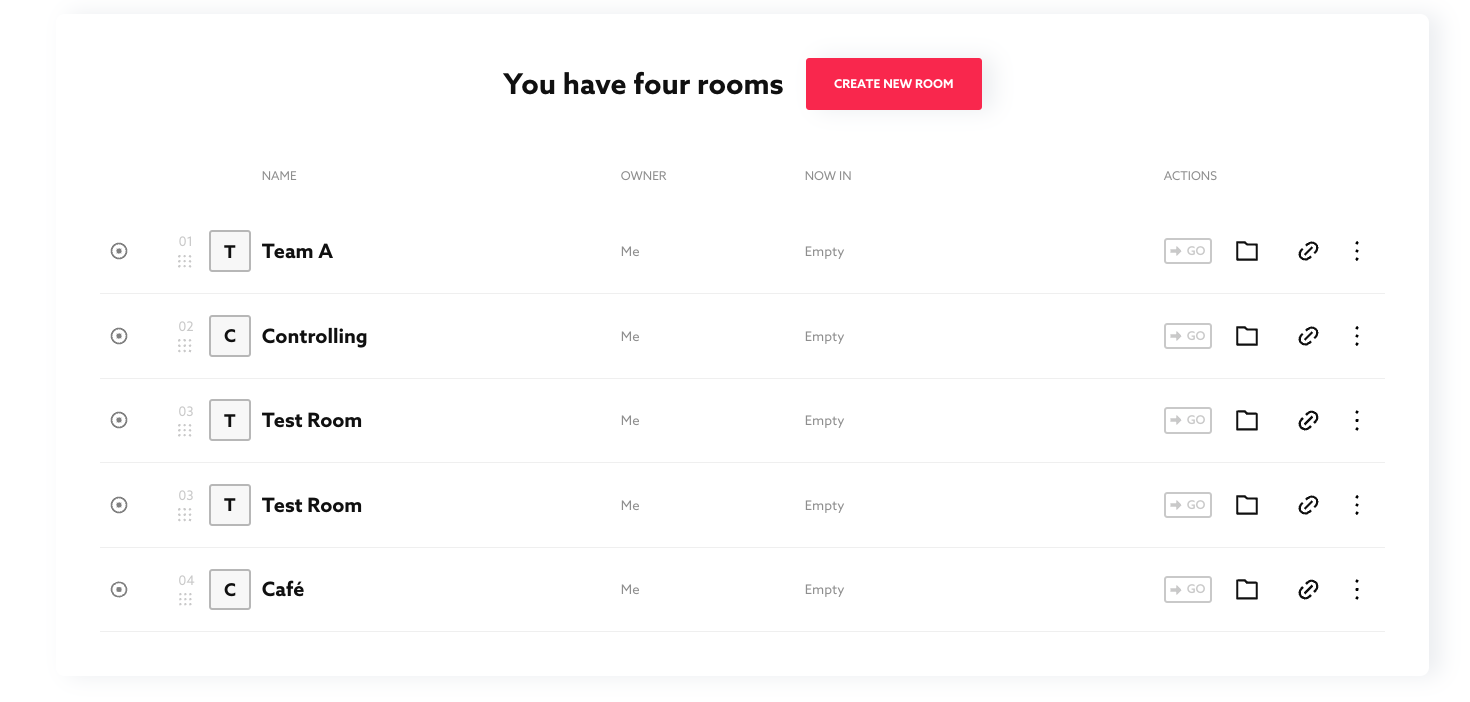
You can also:
- Create new rooms with the "CREATE NEW SPACE" button at the top
- Rename the rooms (simply click on the names and you'll be in edit mode)
- Move the order (this can be done with the dotted handles below the number)
- See the name of the room owner
- See who is in the room now (the system shows the initials of the users who haven't made themselves invisible)
- Clicking on the folder allows you to filter which content is displayed in the "Content" section below the list of rooms
- The link symbol starts the invitation dialog
- With the dotted button, you can
- duplicate rooms (all access rights are copied, so the same users can enter)
- delete rooms (this function deletes the room, but not the content, as it is assigned to users)
- Rooms can contain emojis in their names, and if the emoji is at the beginning, the avatar also carries the emoji.
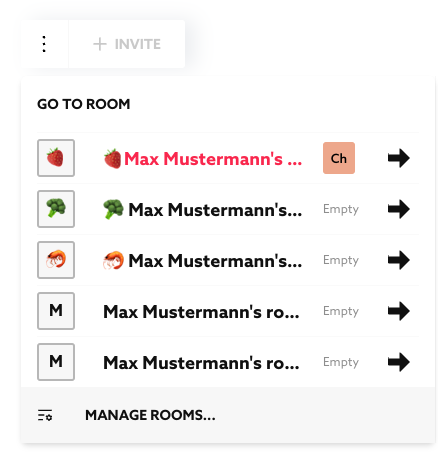
The power of Together lies in the speed with which one can create, name, sort and duplicate rooms.
Published Oct 2, 2026