Working with Multiple Spaces
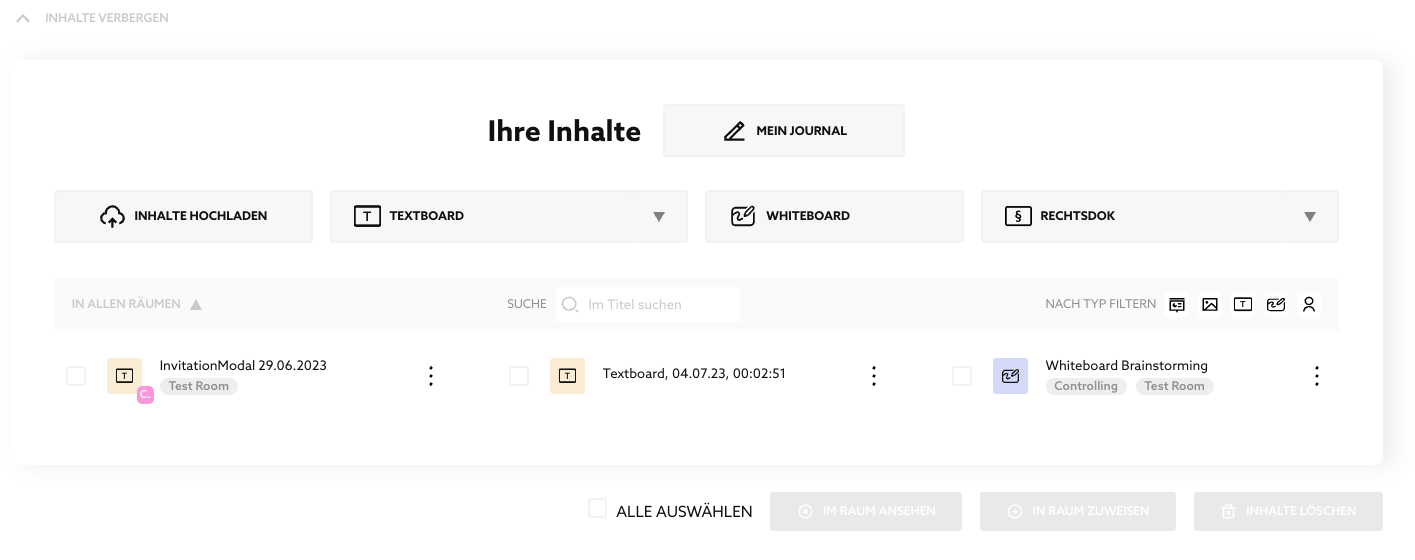
Your contents
This area is below the room list and is hidden until you show it.
Upper area (Journal, Upload & Create Content, Filter)
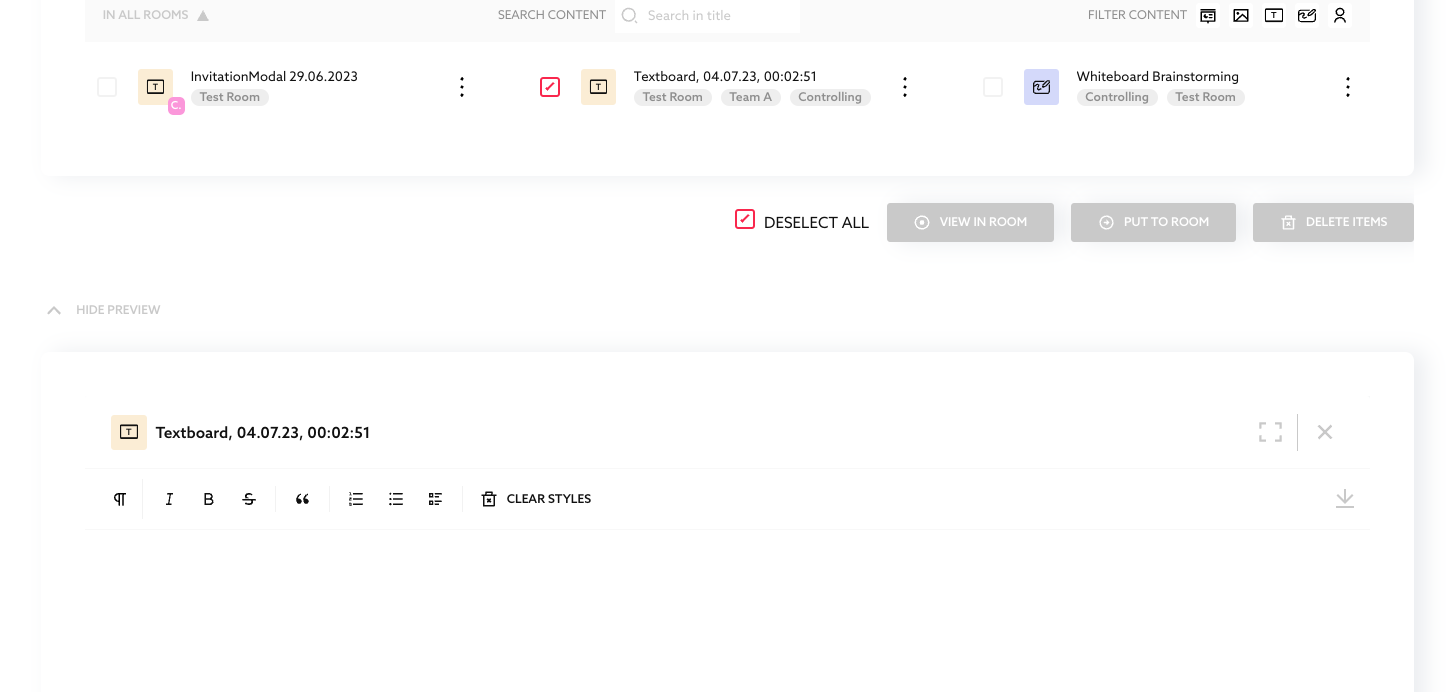
Preview of a single content
If you click on "Preview" below on the left while exactly ONE slide, text board or whiteboard is checked above, you will see this preview below:
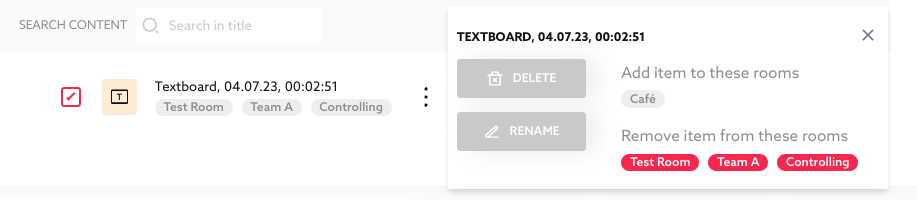
Assign and take content to room
The special power of Together lies not only in the cross-room view of all content, but also in these functions:
-
You can use the points button on the right of each content to not only delete and rename it.
-
By clicking on the room names, you can display or remove the content in a room.
-
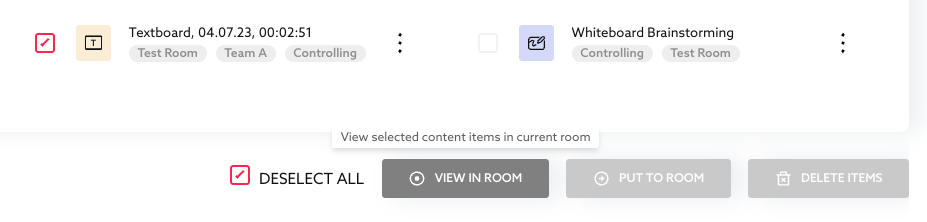
You can check multiple contents and then display them all in one room (PUT TO ROOM)
-
ditto, but now you can even put the contents to a room with one click and jump into the room with “VIEW IN ROOM”:
Published Oct 2, 2026