Videoconference
If you have problems with audio and/or video and need fast solutions scroll down to the troubleshooting section.
Video conferences don't work much differently than in other tools. The main differences: you can chose a user color for collaboration and a system-wide name which is shown to others.
Entering a room
Before entering a room, you will see this dialog (some call it a waiting room):
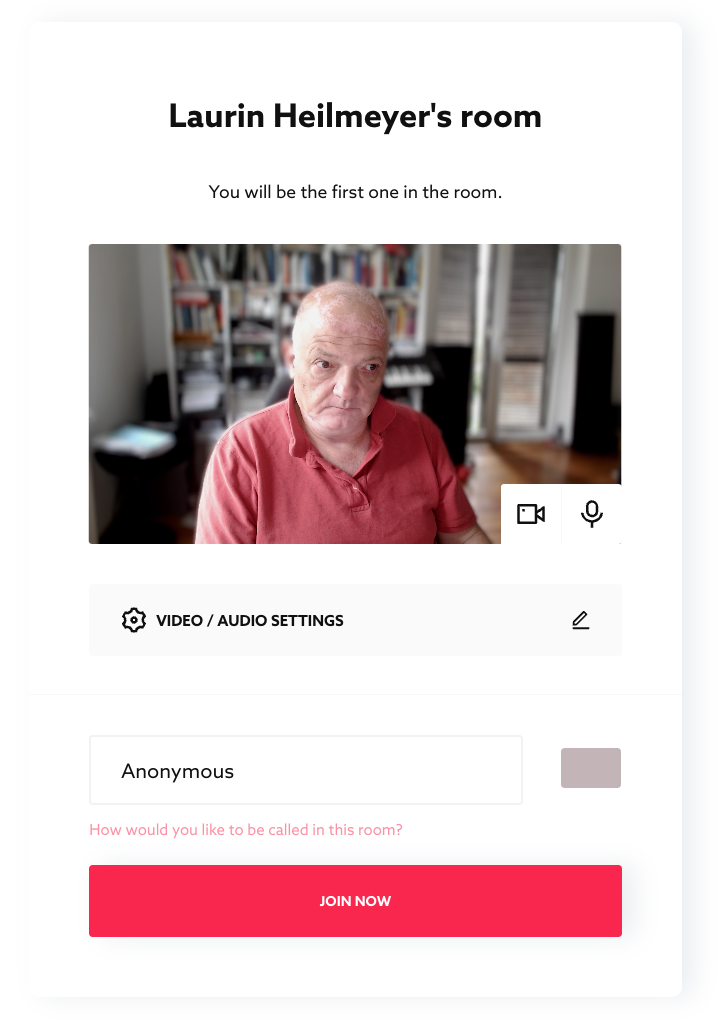
You can click JOIN NOW immediately and enter the room. Later, you can still change the camera and microphone settings there.
Usually, you check a few things here:
- Your name: How do you want to be named in the room? We are talking about screen names here because that is common practice. Don't worry: this name will be shown to others on your video, it is not the name of your screen.
- Your color: This color makes it easier to distinguish speakers and is also used for collaboration. On text boards, you can be recognized by your cursor color, as well as on whiteboards, and the live pointer also uses your color choice.
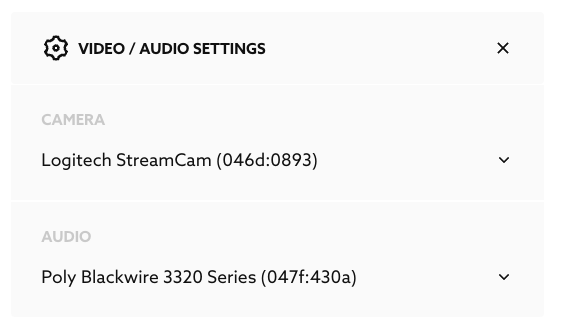
- Video and Audio: With the small buttons, you can turn off the camera (and possibly on) or mute the microphone (and possibly unmute). You can only choose to blur the video background once you are in the room (there in the camera menu, where you can also mirror your video horizontally). By clicking the pen button, device lists unfold, where you can switch to other devices:
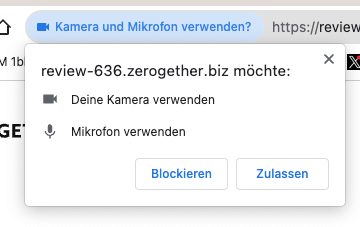
Beforehand, a browser dialog appears asking for permission for the respective device. Please accept this.
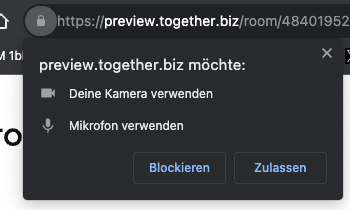
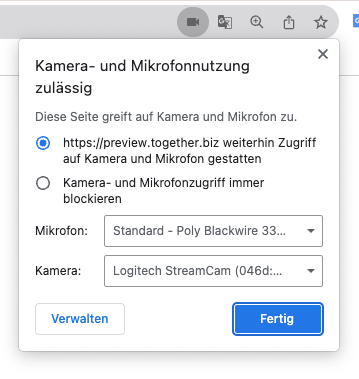
You can change these browser settings in the browser settings. In the example of Chrome, you can access these settings via the small camera icon on the left side of the URL bar, for example.
Room Functions for Video and Audio
You can select and turn on/off your camera below. You can blur the video background and mirror your video horizontally (so that if you point to the left and say “left” everbody sees things: at the left side!)
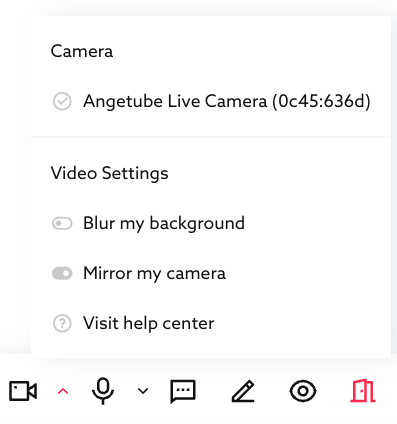
and microphone Moderators can mute all other participants with a mouse click to immediately solve disturbances. However, each participant must unmute themselves individually to prevent accidentally being overheard and not realizing it.