Screensharing
Everyone is familiar with this feature. You can share your entire screen with others in the room or just a specific window or browser tab. That's it.
To start screen sharing, any participant can click on the "Monitor" button located at the top right corner, in the second position.

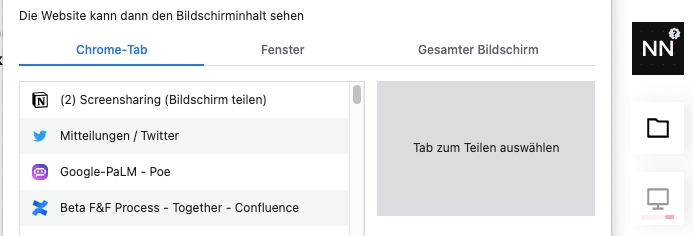
Because everyone is familiar with the challenges of sharing multiple or multi-page documents, we have Together. Instead of relying solely on screensharing, Together provides a better solution by allowing you to upload and organize your content in a clear and structured manner. You can then present your documents page by page on the stage. Screensharing becomes the last resort primarily for showcasing live systems or videos. With Together, you can make document sharing more efficient and organized.
Problems with Screen Sharing
Screen Sharing on the Mac (MacOS) is not working (Chrome, Safari, Firefox…)
A possible reason is that the browser does not yet have the permission to record the screen. You set this in the system settings:
- Privacy & Data Security ⇒
- Screen & System Audio Recording (Screenshot)
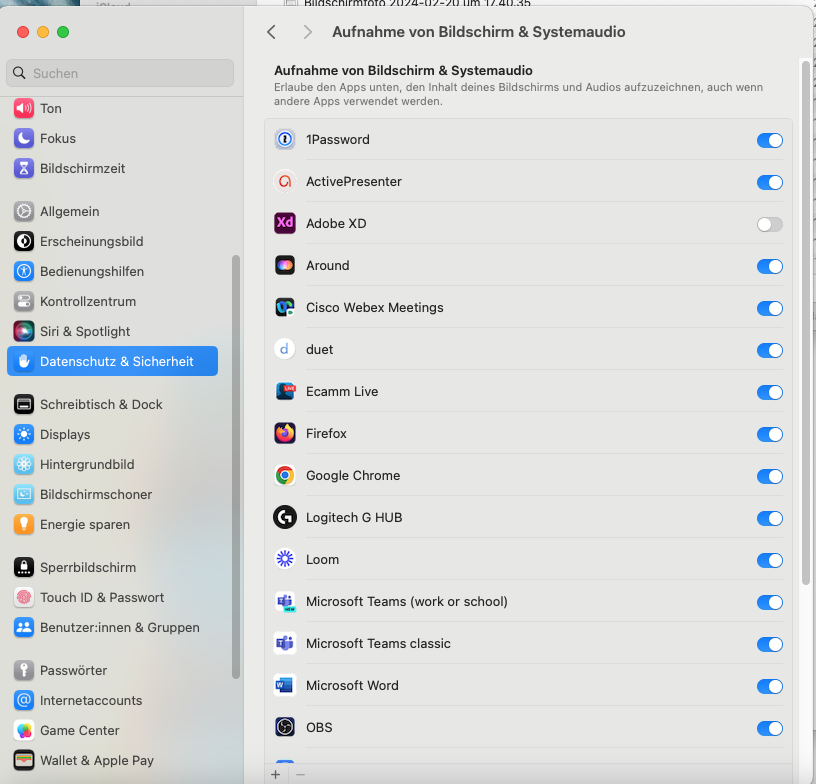
Screen & System Audio Recording (MacOS)
Published Oct 2, 2026